Digital Stickers for Planners, Messages, and 3D Projects
Explore ways to use digital stickers, from reusable PNG icons for planners to iPhone chat stickers and 3D designs in Sticker Studio.
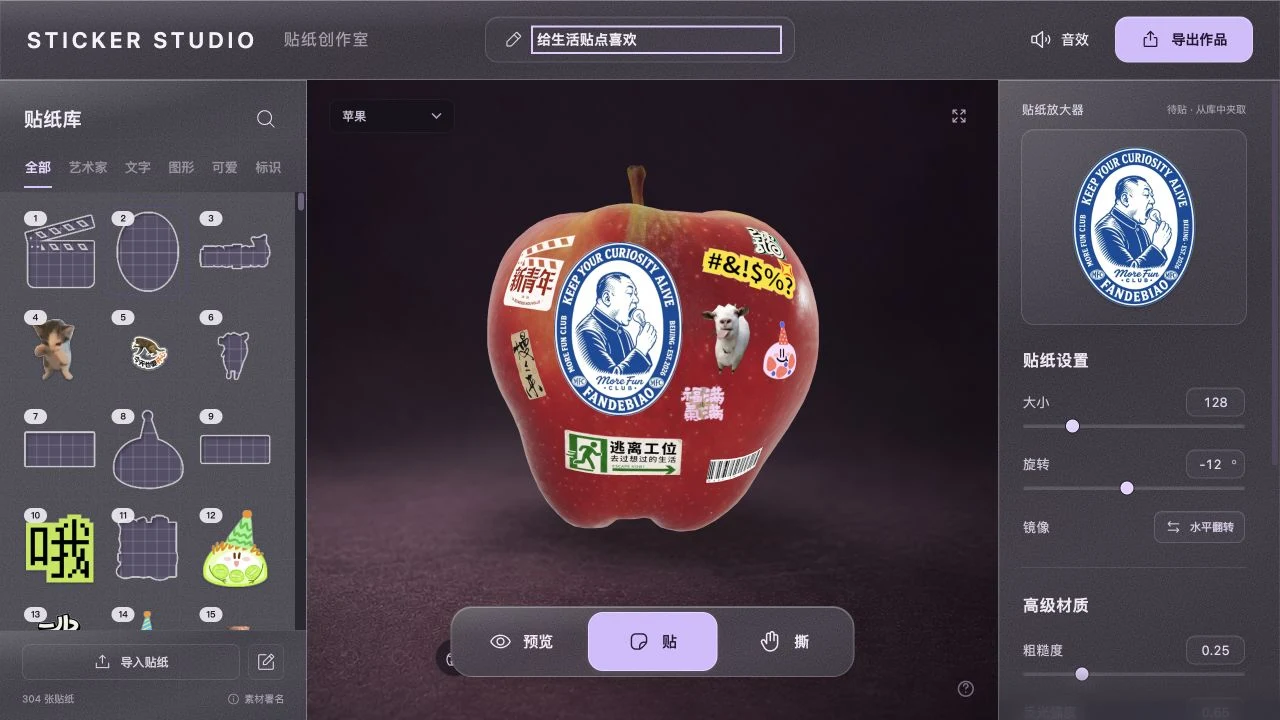
Digital stickers are small pieces of artwork you can place, move, and reuse on screen. A transparent PNG is a good starting point for notes and design apps because the page shows through around the artwork. Messaging apps often use their own sticker collections, so the best format depends on where the sticker will go.
For planners and notes
Make a small set around actions you repeat. Try a check mark for finished tasks, a pin for deadlines, and a coffee cup for breaks. Keep each icon in its own transparent PNG so it can be resized or replaced without moving the others. Choose shapes you can recognize at a glance beside a line of text.
In Goodnotes, open the page and use the Images tool to add your PNG from Photos or Files. Place it on the page, then save it as an Element if you plan to reuse it across your notebook. Goodnotes' image and Elements guide
For messages and reactions
A reaction sticker works best with one readable expression, such as a skeptical pet, a wide grin, or a little celebration. On iPhone you can turn a subject from Photos into a sticker for Messages. If you're sending a standalone PNG, check how the receiving app handles image attachments and transparency. To build a sticker for Apple's sticker menu, use the iPhone sticker walkthrough.
For 3D projects
Choose one large sticker to anchor the composition, then use two or three smaller designs to follow the shape of the object. On a curved model, rotate it after placing each sticker to see where its edges land. Save a screenshot or export your finished composition when it looks right from the angle you want. Open Sticker Studio
Make a small sticker set to reuse
- Pick a theme and make three pieces first, such as a mug, pastry, and tiny heart for a café set.
- In Sticker Maker, give the pieces a similar border width and export them as separate PNGs.
- Test the set where you'll use it. Check the smallest sticker on both a light and a dark background, then simplify any shapes that are hard to read.
- Name the files by what they show, such as
cafe-mug.png, and keep them together so you can find them again.
For more artwork ideas, browse the cute sticker collection or funny sticker collection.